A Professional's Take on the New Sculpt Ergonomic Mouse
Introduction
The Sculpt Ergonomic Mouse has become a familiar name in offices and home workstations where long hours at a desk meet concerns about comfort and repetitive strain. This review evaluates the mouse from a professional perspective—focusing on ergonomics, real-world productivity, and what buyers typically care about when investing in an ergonomic pointing device. The analysis considers design intent, day-to-day performance, customization options, and trade-offs compared with other popular ergonomic mice.
Product review and analysis
Design and ergonomics
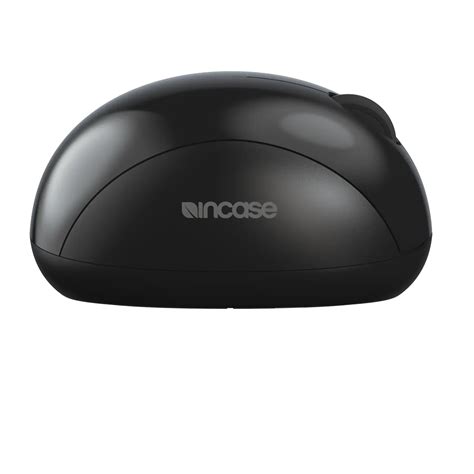
The Sculpt Ergonomic Mouse is defined foremost by its sculpted profile. Instead of mimicking a conventional low-profile mouse, it adopts a domed shape that encourages a more neutral wrist posture and reduces pronation—the inward rotation of the forearm that contributes to wrist and forearm strain. The right-handed contour supports the palm and provides a pronounced thumb rest, which helps stabilize the hand during long sessions. For professionals who spend eight or more hours daily at a keyboard—office staff, programmers, writers, and analysts—the shift in hand position can feel noticeably less fatiguing after a few days of adjustment.
Buyers should be aware that the Sculpt's ergonomic approach is directional: it is optimized for right-handed users with a specific grip style. Palms that are very small or users who favor a fingertip grip rather than a palm grip may find the geometry less suited to their habits. Conversely, those who adopt a full-hand or relaxed-palmed grip generally report better comfort over extended periods.
Performance and sensor behavior
Performance for everyday productivity—document editing, web browsing, spreadsheet navigation—is steady and reliable. The Sculpt employs a sensor tuned for smooth tracking on typical desk surfaces. It is not designed for high-DPI gaming or pixel-precise photo editing; creative professionals who require fine-grained cursor control for retouching or CAD work will likely prefer a mouse with higher sensitivity and adjustable DPI ranges. For its intended use case, however, acceleration is minimal and pointer tracking feels consistent, which is critical for reducing micro-corrections and strain.
Buttons and customization
The Sculpt includes the standard left/right click, a clickable scroll area, and at least one thumb-placed button that can be assigned to common navigation functions. The mouse integrates with the manufacturer’s configuration software, which allows assignment of shortcuts and some behavior adjustments. That said, the customization surface is intentionally conservative—the Sculpt prioritizes a simple, distraction-free control layout rather than a profusion of programmable buttons.
Professionals who depend on heavy macro use—video editors, CAD operators, or advanced power users—may find the Sculpt’s programmable capacity limiting. For those users, mice with dedicated macro banks or more configurable hardware will be a better fit. For knowledge workers and generalists who want a reliable button set and a focus on comfort, the Sculpt's layout hits a practical sweet spot.
Connectivity, battery, and compatibility
The Sculpt connects wirelessly and maintains a dependable link for common office distances. Different SKUs of this family have historically offered Bluetooth and proprietary 2.4 GHz receiver options; many purchasers will choose based on available ports and whether a dongle-free Bluetooth setup is preferable. In typical office use—laptops docked with limited USB slots or desktop machines with ample ports—both approaches are acceptable. Battery life is competitive for the segment: with intermittent activity and standard office workloads, the mouse will run for multiple weeks on a single battery before replacement or recharge is necessary.
Compatibility with mainstream operating systems is solid, and the configuration software supports features like button remapping and firmware updates. For IT-managed environments, administrators should verify driver policy and update processes to ensure the mouse functions as expected in locked-down or Kiosk environments.
Shop the latest Electronics picks on Amazon.
Browse Now →Build quality and materials
Materials and finish are tuned toward daily use. The Sculpt uses matte plastics with textured thumb rests to reduce slipping and maintain a secure feel over hours of use. The click buttons have a clean, muted actuation that prioritizes comfort over the loud, tactile feedback of gaming mice. Seams and joints exhibit tight tolerances in production units, and the shape lends a feeling of structural stability rather than flexing under moderate pressure.
Real-world use cases
Several practical scenarios illustrate where the Sculpt delivers the most value:
- Office productivity: For professionals who switch among email, spreadsheets, and documents throughout the day, the Sculpt reduces wrist angle and provides a hand position that eases long-session discomfort.
- Remote work setups: For remote workers who improvise ergonomic solutions at kitchen tables or sofas, the mouse’s shape yields clear comfort gains compared with flat travel mice.
- Accessibility and rehabilitation: Individuals recovering from mild repetitive strain or those seeking to alter a posture that contributes to discomfort can use the Sculpt as part of a broader ergonomic strategy that includes keyboard choice and desk height adjustments.
- Mixed-device environments: For users who switch frequently between a laptop and a desktop or use multiple screens, a wireless Sculpt supports quick transitions without introducing additional strain.
Pros & Cons
Pros
- Strong ergonomic design that encourages a more neutral wrist position and reduces pronation.
- Comfortable thumb rest and palm support for prolonged sessions.
- Reliable wireless connectivity suitable for most office environments.
- Sensible button layout with straightforward customization through vendor software.
- Durable feel and understated aesthetic appropriate for professional settings.
Cons
- Right-handed-only design excludes left-handed users.
- Limited high-DPI performance for specialized creative or gaming tasks.
- Not the best choice for users with very small hands or fingertip grip styles.
- Fewer programmable buttons compared with advanced productivity mice.
- Some users report an adjustment period as hand posture changes from conventional devices.
Comparison with other ergonomic mice
To place the Sculpt in context, the table below compares it to two common alternatives: a vertical-oriented ergonomic mouse and a feature-rich ergonomic productivity mouse. This offers a high-level view of where the Sculpt sits in the broader market of comfort-focused pointing devices.
| Feature | Sculpt Ergonomic Mouse | Vertical Ergonomic Mouse (e.g., high-tilt vertical) | Feature-rich Productivity Mouse (e.g., multi-button, rechargeable) |
|---|---|---|---|
| Ergonomic approach | Domed, palm-supporting shape that reduces pronation | Severe vertical orientation that places hand in handshake position | Sculpted, low-profile optimized for many programmable controls |
| Handedness | Right-handed | Usually right-handed (some ambidextrous verticals exist) | Often right-handed but some ambidextrous models available |
| Sensor and precision | Good for productivity; not high-DPI | Varies; many verticals focus on comfort over ultra-high precision | Higher DPI options and adjustable sensitivity for design/gaming |
| Programmability | Moderate (basic remapping) | Limited to moderate | Extensive—multiple macro buttons and profiles |
| Connectivity | Wireless (Bluetooth or receiver depending on model) | Wireless or wired options | Wireless with rechargeable batteries and fast recharging |
| Ideal user | Office workers seeking posture improvement | Users who need aggressive pronation reduction | Power users who need macros and high precision |
Overall, the Sculpt fits squarely in the category of comfort-first productivity devices. It strikes a balance between corrective ergonomics and day-to-day usability without targeting niche needs such as macro-heavy workflows or ultra-precise cursor control.
Buying guide: how to decide if the Sculpt Ergonomic Mouse is right for a buyer
Define ergonomic goals
First, buyers should define the problem they want to solve. Is the objective to ease mild wrist discomfort, to prevent future pain, or to accommodate a diagnosed repetitive strain condition? The Sculpt is designed to address posture and comfort for prolonged use; it is not a medical device. If the primary goal is proactive comfort for lengthy typing and pointing sessions, the Sculpt is a strong candidate. If the need is therapeutic or clinical, consultation with an occupational therapist is advised.
Consider hand size and grip style
Hand size and preferred grip style are critical. The Sculpt favors full-palmed grips; small-handed or fingertip-grip users should test the mouse in person if possible. Retailers that allow returns or trial periods make it easier to confirm fit. Ergonomic benefits rely on correct hand placement—if the hand slips or the fingers do not rest naturally on the buttons, comfort improvements will be muted.
Match device features to daily tasks
Assess primary tasks: general productivity, creative editing, or gaming. Knowledge workers and professionals who alternate between web browsers and office suites will find the Sculpt appropriate. Photo editors and CAD users should weigh the need for finer sensor control. Gamers should choose a dedicated gaming mouse with higher reporting rates and DPI tuning rather than an ergonomics-first office mouse.
Discover deals on Electronics — updated daily.
Browse Now →Connectivity and multi-device needs
Decide whether Bluetooth is required. Users who frequently switch devices or who want to conserve USB ports may prefer a Bluetooth model. Those in environments with many wireless devices or where plug-and-play reliability is crucial may opt for a receiver-based SKU. Confirm the expected host support—some enterprise environments restrict installing device utilities, which can limit customization.
Customization and software
Evaluate how much programming is necessary. The Sculpt offers modest remapping capabilities through the manufacturer’s software. If macros, application-specific profiles, or many shortcut buttons are essential, look for mice with richer software ecosystems and larger button arrays.
Budget and long-term value
Price should be weighed against the expected reduction in discomfort and the potential productivity gains of being more comfortable during long sessions. Ergonomic devices often provide returns in reduced fatigue and fewer interruptions. Consider warranty length and the availability of spare parts or replacement policies—these are practical factors in a corporate procurement decision.
Try before committing
When possible, testing the mouse for a few workdays is the best way to confirm fit. Many office equipment vendors, ergonomic specialists, and some retailers provide trial programs or extended return windows. A short trial can quickly reveal whether the change in hand position produces the desired comfort improvements or whether an alternative design is a better match.
Conclusion
The Sculpt Ergonomic Mouse is a thoughtful option for professionals who prioritize comfort and posture over extreme customization or gaming-grade performance. Its sculpted shape and thumb support meaningfully change wrist angle and hand posture, which can reduce fatigue during long workdays. While it is not a universal solution—left-handed users, fingertip-grip users, and those requiring very high cursor precision will need different products—the Sculpt is a practical, well-built choice for the majority of office workers and remote professionals. For buyers focused on alleviating desk-related discomfort while preserving straightforward functionality, the Sculpt merits serious consideration as part of a broader ergonomic setup that includes keyboard choice, desk height, and monitor placement.